FaderRoom Try it free

For Ableton Live, on Windows and Mac

A mixing console for Ableton Live.

FaderRoom is a second-screen controller for Live that runs on the same computer. It reads the Set you have open, shows it as a mixing desk on a monitor of its own, and everything you move changes the Set itself.

14 days free, with every feature. Works with the Sets you already have.

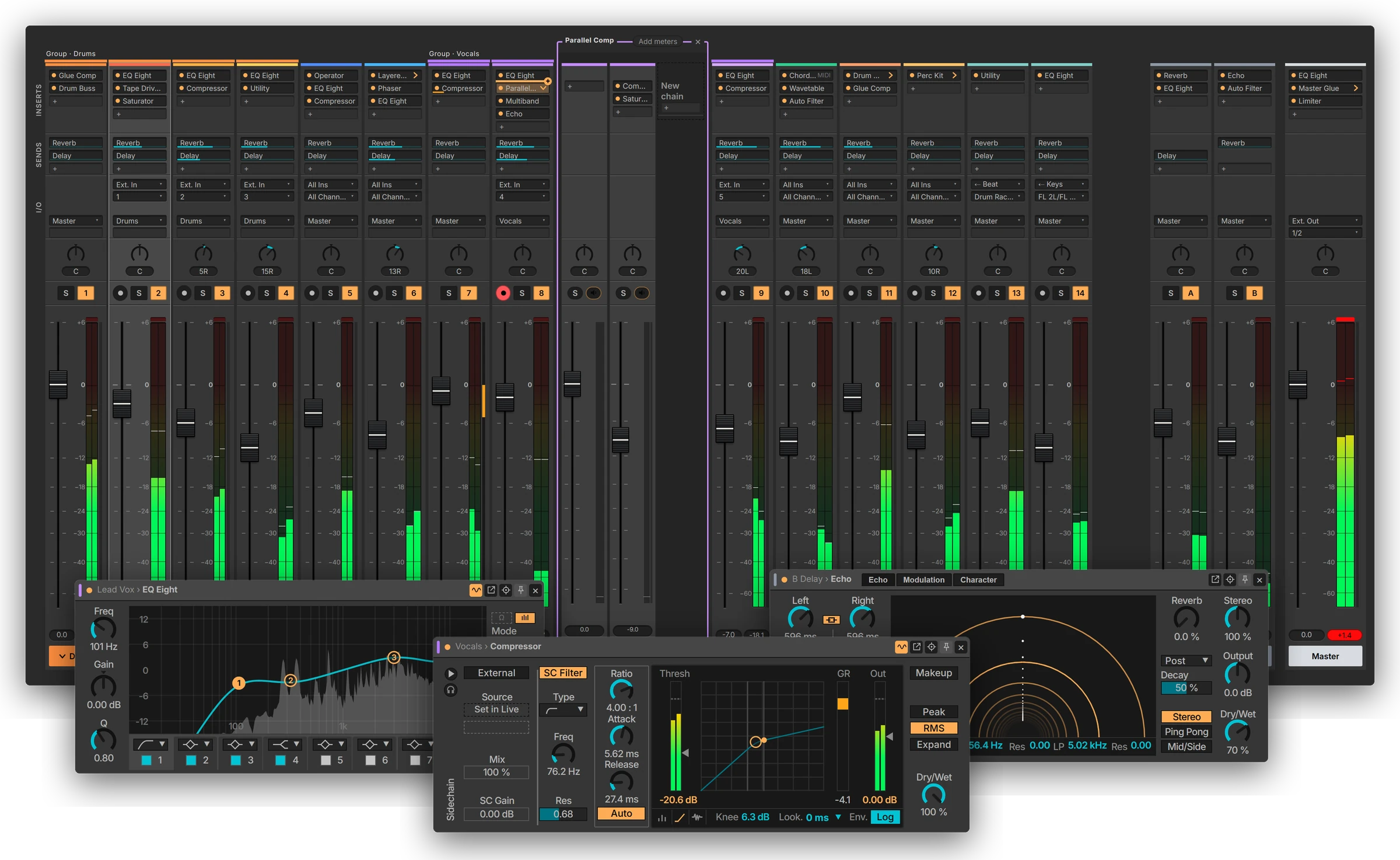
The console with all tracks side by side, a Parallel Comp rack opened into its chains, and EQ Eight, Compressor and Echo open in their own windows

Built for mixing

Everything on the desk.
Nothing in the way.

Side by side

Dial in several tracks at once.

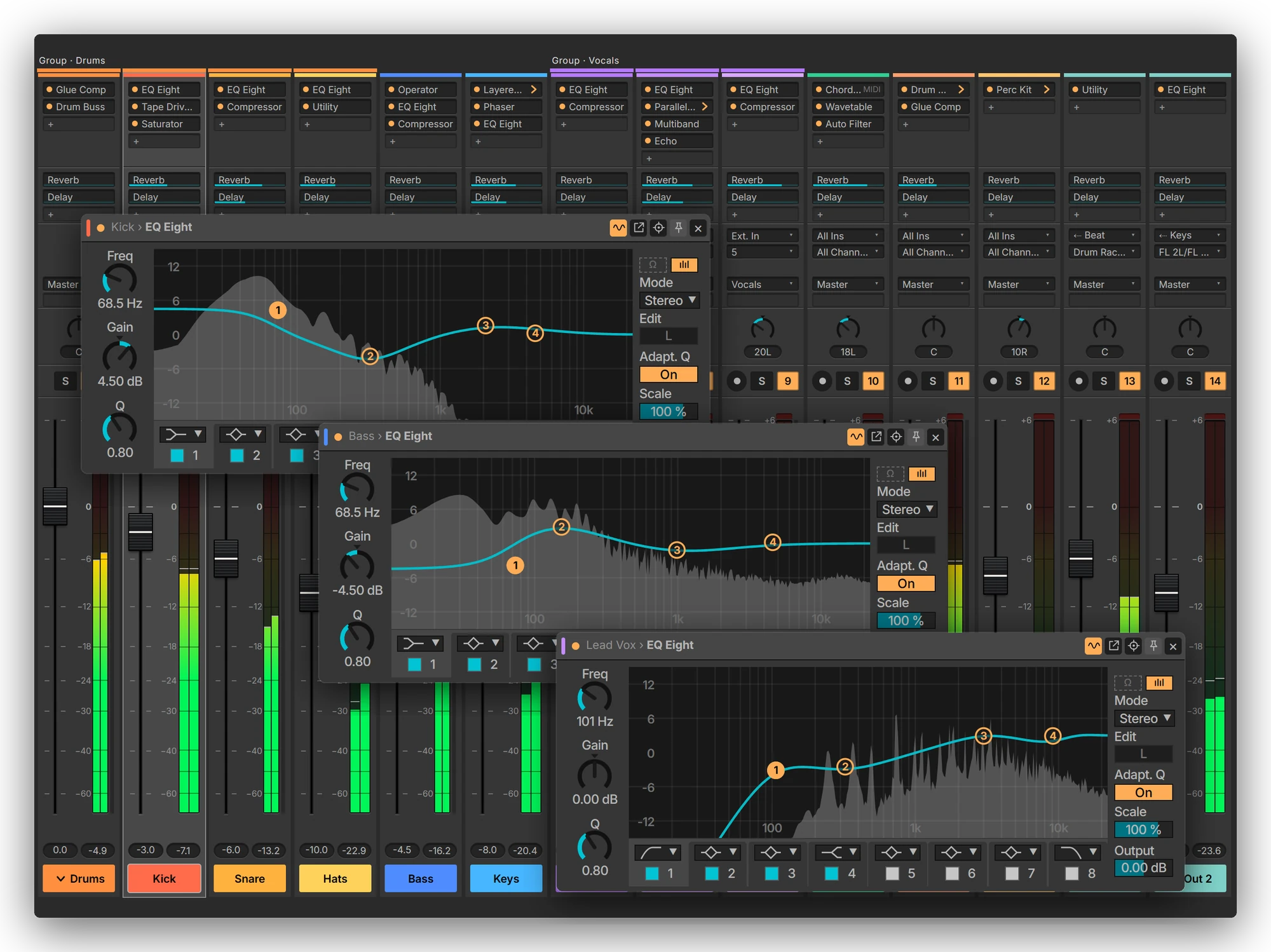
Open EQ Eight on the kick, the bass and the vocal together, each in its own window with the track's name and colour. Cut the bass where the kick needs room and watch both curves while the song plays. Any Audio Effect on any track opens this way, and Live follows every move.

EQ Eight open on the Kick, Bass and Lead Vox tracks over the console: the kick boosted at 68 Hz, the bass cut there

Gain reduction

Watch every compressor work, right on the strip.

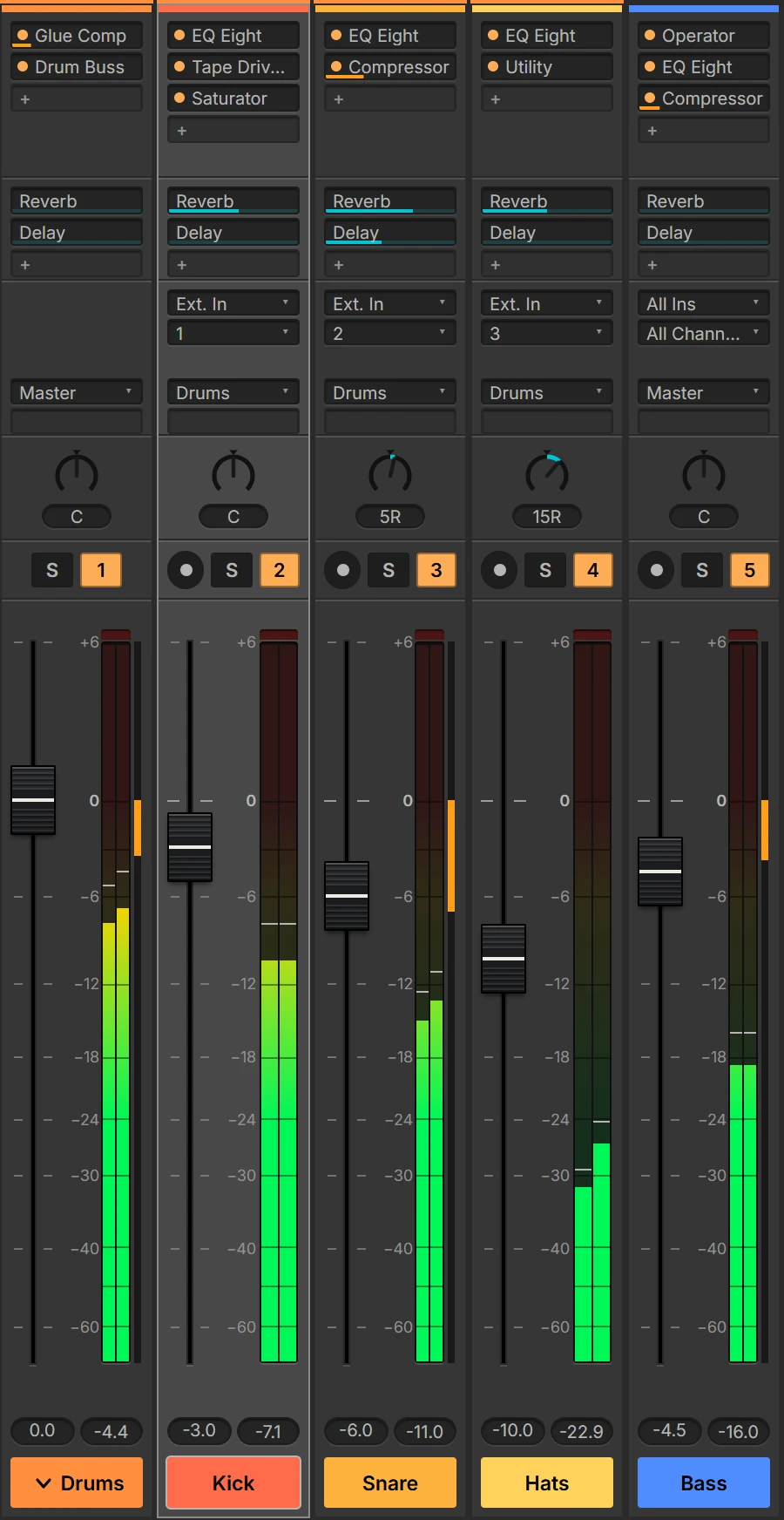
In Live, gain reduction stays inside each compressor's own panel. FaderRoom puts it on the console, right beside every track's level meter, for every compressor on the track. Each compressor's insert shows its own share, so you see at a glance which one does the work. It works with Live's compressors and with your compressor plug-ins.

Five channel strips: Drums, Snare and Bass each show an orange gain reduction meter beside their level meter, and an orange bar under their compressor's insert

Racks

Racks open into channel strips.

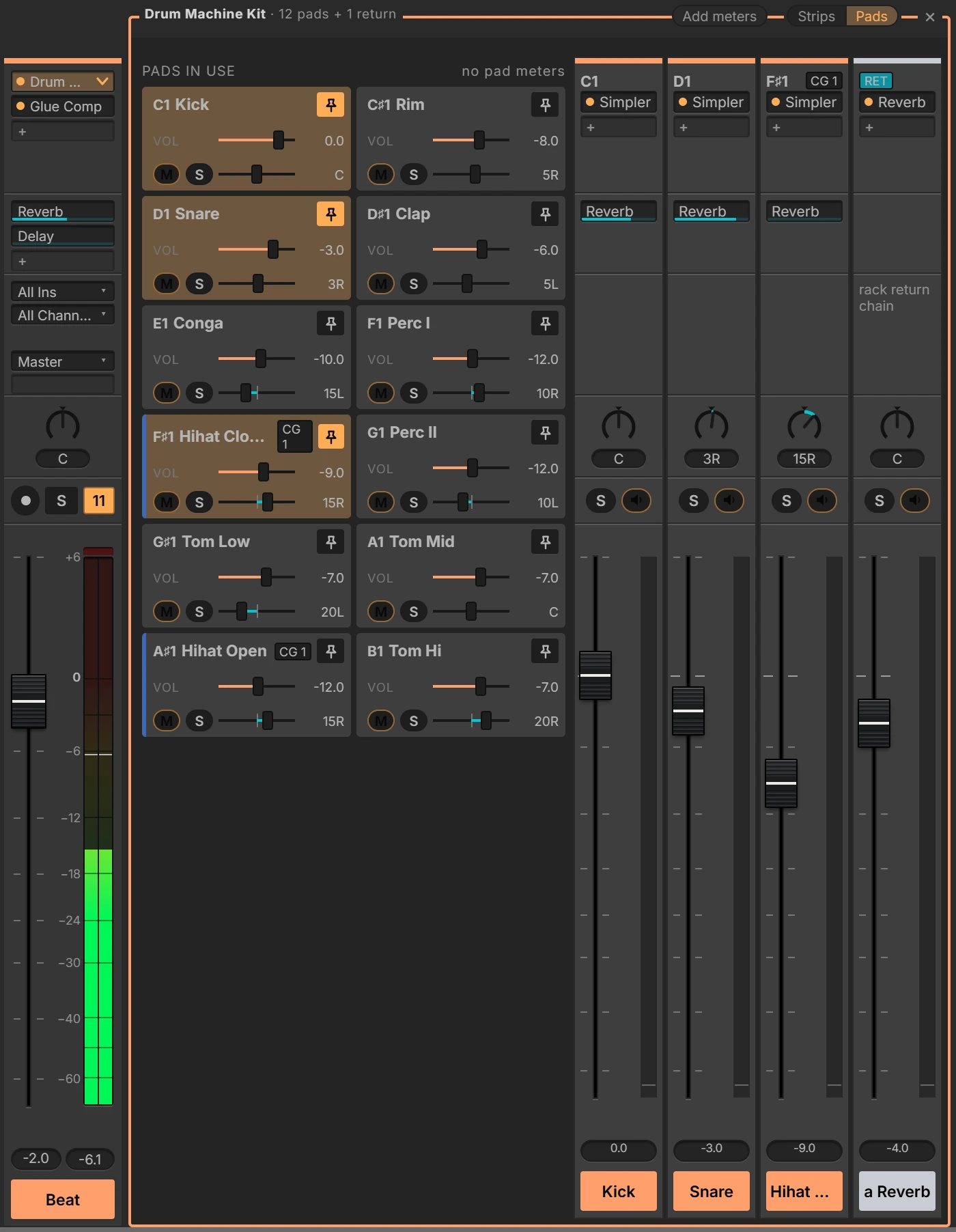
Open a rack and its chains appear beside the track, each with its own fader, pan, rack sends, mute and solo. Racks inside racks open too. A big Drum Rack fits in one grid of pads: pin the ones you mix most, like the kick, snare and hats, and they get full channel strips with their inserts and sends, while the rest stay out of the way. With Max for Live, every chain gets its own meter too.

A Drum Rack opened beside its track: twelve pads in a grid, with Kick, Snare and Hihat Closed pinned as channel strips

Second screen

Looks like Live, right next to it.

Keep the mix on your second monitor and Live's arrangement and clips on the main one, with no switching between views. FaderRoom takes on the theme you use in Live, dark or light, and changes when you change it, so the two screens work as one.

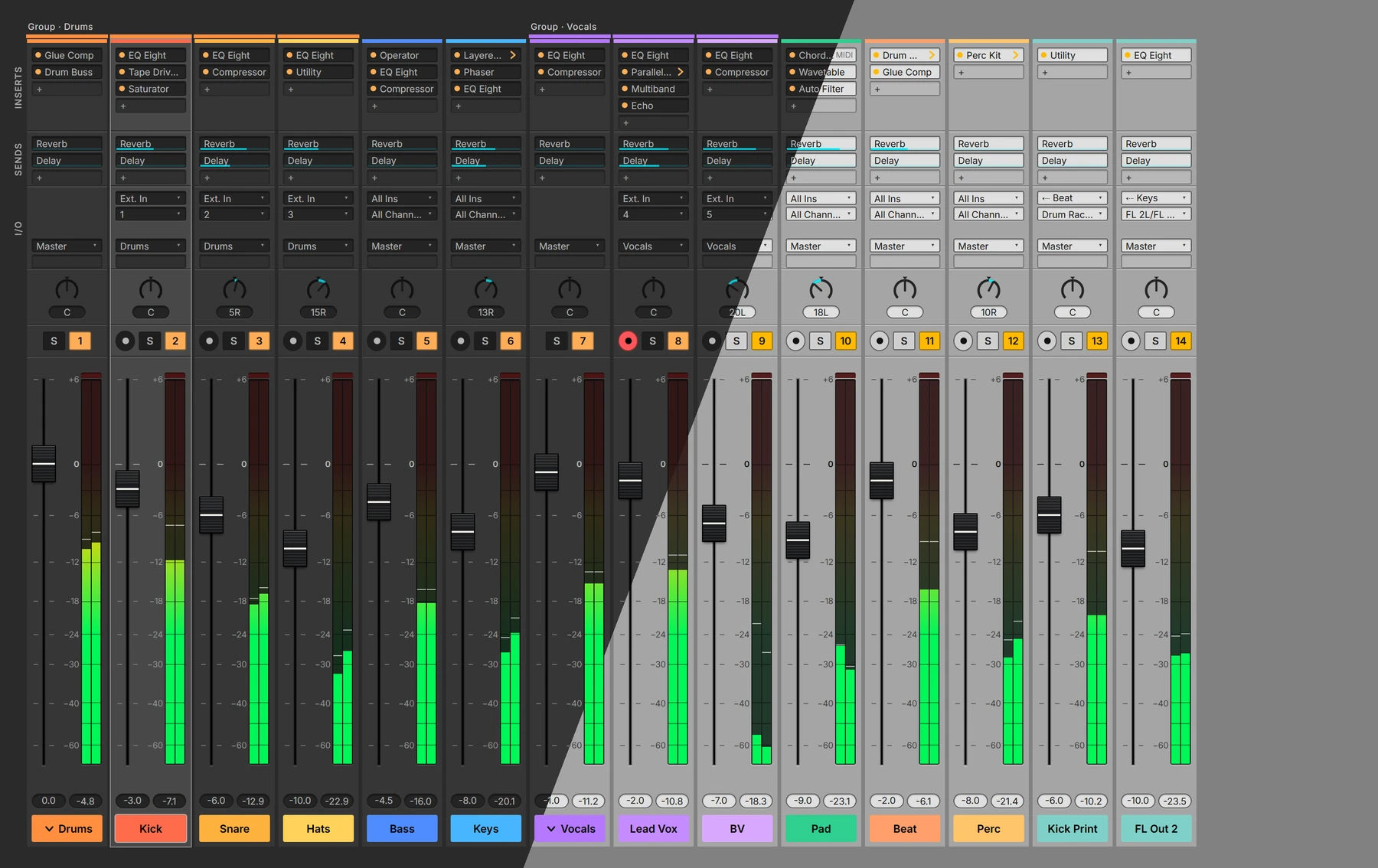
The same console in a dark and a light Live theme

Show in Live

Find anything in a big Set.

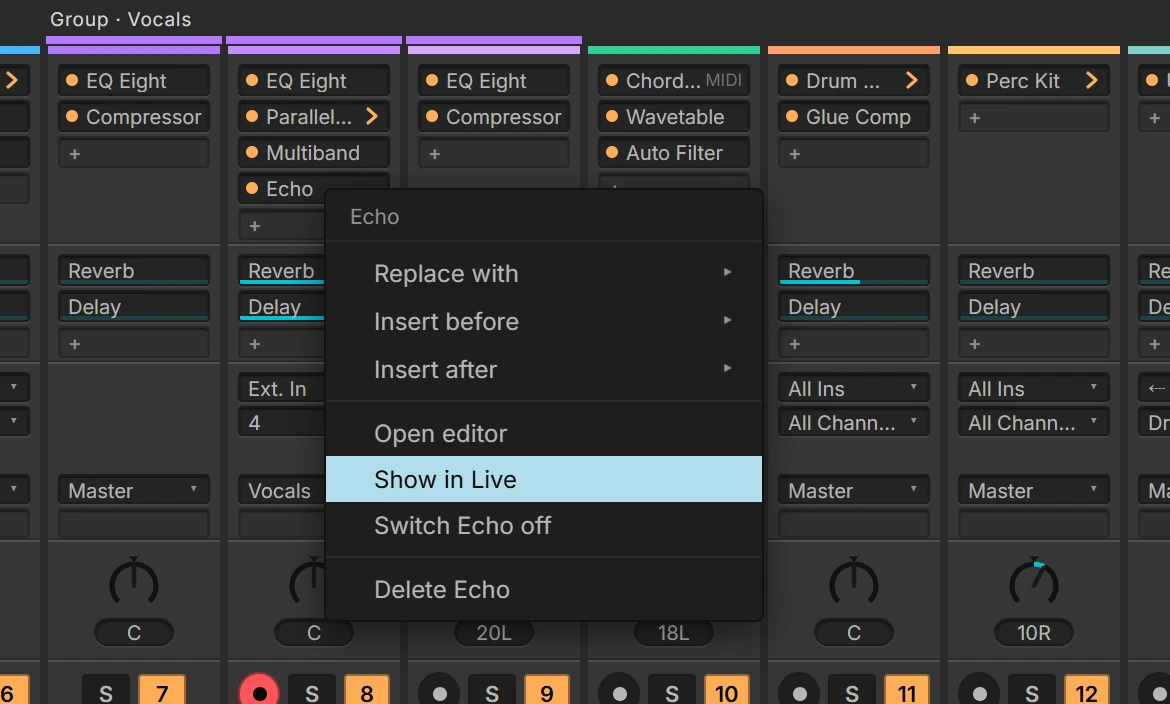
Sixty tracks, a dozen groups, racks inside racks, all side by side. Click a track's name and Live selects it. Right-click an insert and choose Show in Live, or Alt-click it, and Live opens that device and comes to the front. A track fed from another one shows where its signal comes from and takes you there.

An insert's right-click menu with Show in Live highlighted

Inserts, sends and routing

Every insert, send and route, on every strip.

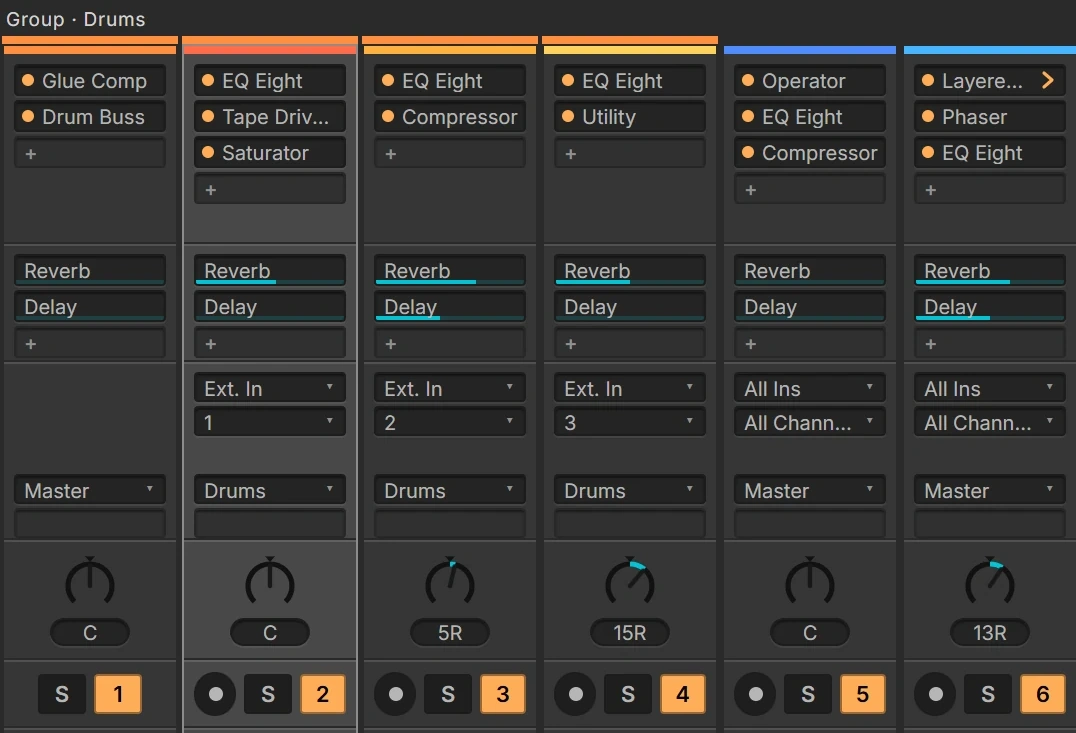
A row for every insert, a row for every return in the sends, and each track's input, output and monitoring below them. Click an insert to open it, plug-ins included. Right-click to replace it, add one before or after, or delete it, with Live's browser and search. Drag it to move it, even to another track.

Insert, send, input and output rows on six channel strips

Audio Effects

Live's Audio Effects, in windows of their own.

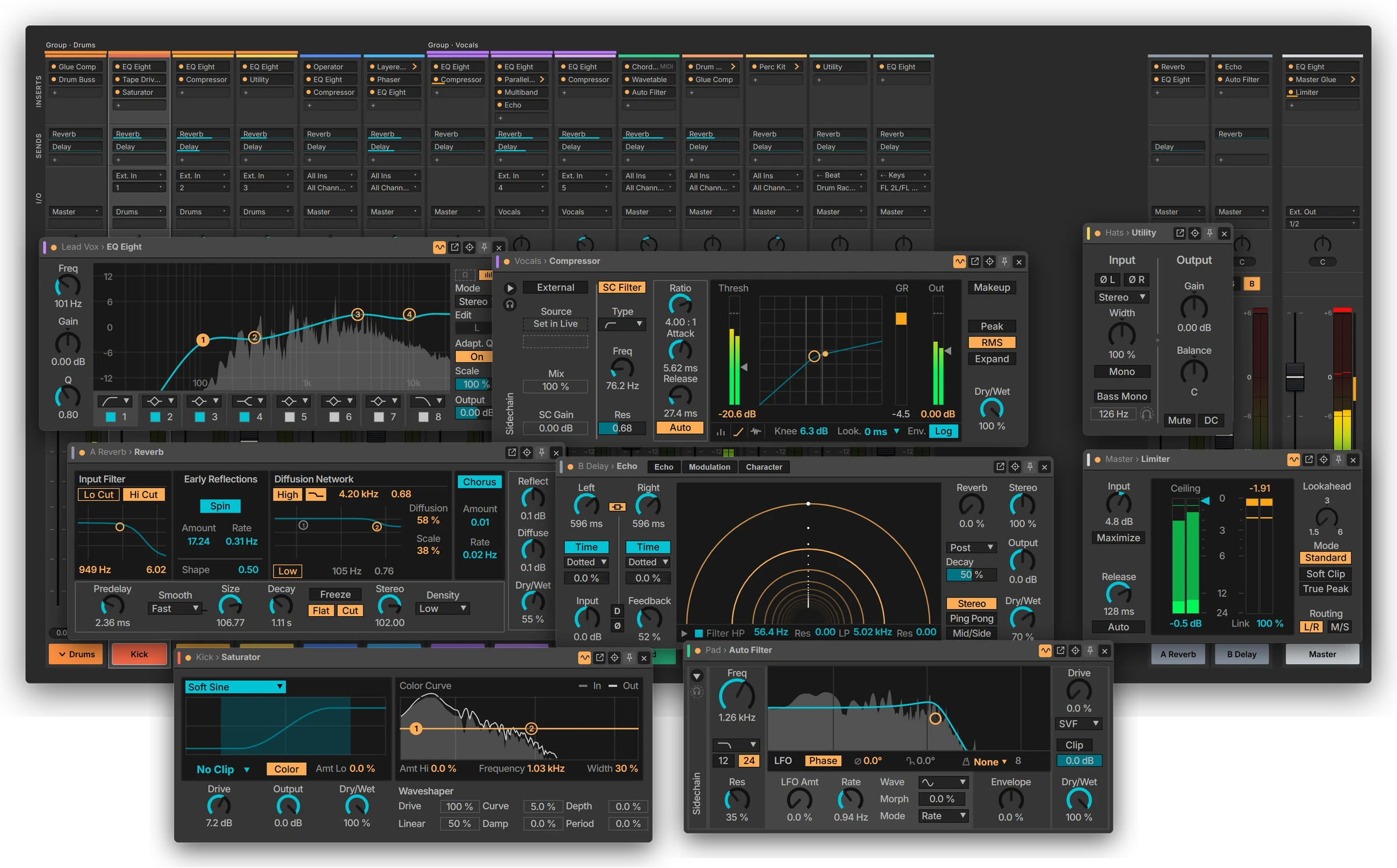
Click an insert and its Audio Effect opens in a window over the console, laid out as it is in Live. Turn a knob or drag an EQ point and the device in your Set changes with it. Open as many as you like, from as many tracks as you like. Each one shows the sound passing through, as in Live: the spectrum behind the EQ curve, the gain reduction in a compressor.

The console with eight Audio Effects open over it: EQ Eight, Compressor, Utility, Reverb, Echo, Limiter, Saturator and Auto Filter

Every Audio Effect that comes with Live 12 has one.

  • Align Delay
  • Amp
  • Auto Filter
  • Auto Pan-Tremolo
  • Auto Shift
  • Beat Repeat
  • Cabinet
  • Channel EQ
  • Chorus-Ensemble
  • Compressor
  • Corpus
  • Delay
  • Drum Buss
  • Dynamic Tube
  • EQ Eight
  • EQ Three
  • Echo
  • Envelope Follower
  • Erosion
  • External Audio Effect
  • Filter Delay
  • Gate
  • Glue Compressor
  • Grain Delay
  • Hybrid Reverb
  • LFO
  • Limiter
  • Looper
  • Multiband Dynamics
  • Overdrive
  • Pedal
  • Phaser-Flanger
  • Redux
  • Resonators
  • Reverb
  • Roar
  • Saturator
  • Shaper
  • Shifter
  • Spectral Resonator
  • Spectral Time
  • Spectrum
  • Tuner
  • Utility
  • Vinyl Distortion
  • Vocoder

Every window works in every edition of Live. Plug-ins open in their own windows.

And all the small things

The details that make a console feel like a desk.

Mix several tracks at once

Ctrl- or Shift-click to select tracks. Move one fader and the others follow by the same amount, as in Live. Mute, solo and arm switch them all.

Play from the console

Space plays and stops, Shift+Space continues, F9 records, in the console and in every effect window.

Windows that stay put

Pin an effect window above the console, or let it follow the insert you click. Each one remembers its size and place.

Fits your screen

Zoom, narrow or wide strips, and switch the insert, send and I/O sections on or off.

Groups fold together

Fold a group in FaderRoom and it folds in Live too.

Automation in sight

Effect windows mark automated controls, and one click re-enables automation you've overridden.

How it works

Set up once. Mix from then on.

Setup takes a few minutes and you do it once.

  1. Install

    It places one small add-on in Live's library.

  2. Switch it on in Live

    Pick it once in Live's settings under Link, Tempo & MIDI.

  3. Open your Set

    FaderRoom reads its tracks, devices and routing and shows them. Move it to your second screen.

FaderRoom

€49

Launch price until 31 January. Then €79.

One licence for up to two of your computers, yours to keep, VAT included. Try every feature free for 14 days first.

  • The full console, racks and routing
  • A window for every Audio Effect in Live 12
  • Windows and Mac

Download

Try it free for 14 days.

Every feature, no account needed. Install it, then pick FaderRoom as a Control Surface in Live's settings: the app shows you how.

Questions

Good to know.

Which versions of Live does it work with?

Ableton Live 12. Live 11 and earlier aren't supported.

Does it work with Live Standard, Intro and Lite?

Yes. The console, racks, routing and every Audio Effect window work in every edition. The signal in the effect windows, gain reduction on the strips and the meters on rack chains need Max for Live, which comes with Suite, is an add-on for Standard, and isn't available in Intro or Lite.

Do I need Max for Live?

Only for the signal in the effect windows, gain reduction on the strips and the meters on rack chains. Everything else works without it.

Windows or Mac?

Both. One licence covers up to two of your own computers, Windows or Mac.

Will it work with my existing projects?

Yes. Open any Set and it's there, with nothing to convert. FaderRoom is a controller: it doesn't change the sound of your Set, it moves the controls that are already there.

Where is my mix saved?

In your Live Set, as always. FaderRoom only controls Live: every change you make in it is a change in the Set, and you save it in Live. FaderRoom itself remembers only its own layout, such as which racks are open.

What about third-party plug-ins?

They show up on the strip like any other insert, and a click opens the plug-in's own window.

Do I need a second monitor?

No, but it's at its best on one. FaderRoom runs in its own window on the same computer as Live, so it also works beside Live on a single screen.

Can I try it first?

Yes. 14 days free, with every feature. After that, FaderRoom still shows your mix, and changes need a licence key.

Is it made by Ableton?

No. FaderRoom is independent and isn't affiliated with or endorsed by Ableton.

Mix with the whole picture.

Try it free for 14 days.